Skip to content

Why Your Status Saver Isn’t Working — And What You Can Do About It
You open your favorite Status Saver app expecting to save an important WhatsApp Status, but instead you see an empty screen. The latest Status updates don’t appear, the Save button doesn’t respond, or the app suddenly stops working after an Android update.
If this sounds familiar, you’re not alone.
Every day, thousands of Android users search for solutions to problems like “WhatsApp Status Saver not working,” “Status Saver not detecting Status,” and “Why can’t I save WhatsApp Status?” These issues are common across different devices and Android versions, and they often leave users frustrated especially when they risk losing important photos or videos that disappear after 24 hours.
The good news is that most of these problems have simple explanations and practical solutions.
In this guide, we’ll walk through the most common WhatsApp Status Saver problems, explain why they happen, and show you how to fix them step by step. You’ll also learn how choosing a well-designed app like StatusCraft can help reduce many of these issues by providing a cleaner, more reliable experience.
Whether you’re using WhatsApp for personal communication, business updates, or creative inspiration, this article will help you troubleshoot problems with confidence.
Table of Contents
Why Do WhatsApp Status Saver Apps Stop Working?
Many users assume that a Status Saver app has a bug whenever something goes wrong.
In reality, that’s not always the case.
Modern Android devices have become more secure over the years. Each new Android version introduces changes that affect how apps access files, storage, and temporary media. At the same time, WhatsApp continues updating its own security and privacy features.
Because of these changes, Status Saver apps must continuously adapt.
Sometimes the issue is caused by:
- Android system updates
- Missing storage permissions
- Battery optimization settings
- Changes in WhatsApp’s media handling
- Device-specific restrictions
- User settings
- Outdated app versions
Understanding the real cause helps you solve the problem much faster.
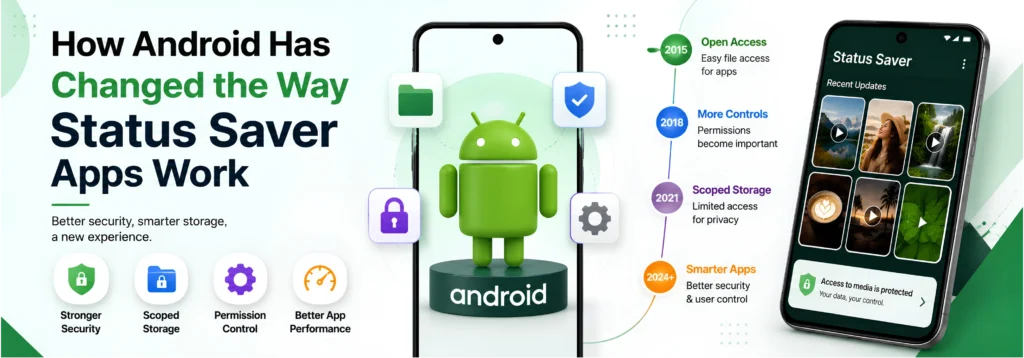
How Android Has Changed the Way Status Saver Apps Work
Several years ago, most Status Saver apps could easily detect temporary Status files stored on a device.
Today, Android uses stronger privacy protections.
Features such as Scoped Storage, stricter permission management, and background activity restrictions limit how apps access local files.
These improvements are beneficial for user privacy, but they also mean that Status Saver apps must follow updated Android guidelines.
A reliable app should:
- Request only the permissions it genuinely needs
- Handle storage access responsibly
- Remain compatible with newer Android versions
- Offer smooth performance without unnecessary complexity
Apps that aren’t regularly updated may struggle to keep up with these platform changes.
Problem #1 – Status Saver Cannot Detect Any WhatsApp Status
This is one of the most frequently reported issues.
You open your Status Saver app expecting to see recently viewed Status updates, but nothing appears.
The app simply displays an empty screen.
Why Does This Happen?
There are several possible reasons:
- You haven’t viewed the Status in WhatsApp yet.
- The app doesn’t have permission to access local media.
- WhatsApp hasn’t cached the viewed Status.
- The app isn’t compatible with your Android version.
- Temporary files have already been removed.
Many users don’t realize that simply opening a Status Saver app isn’t enough. In most cases, the Status must first be viewed within WhatsApp before it becomes available for management.
How to Fix It
Follow these steps:
- Open WhatsApp.
- View the Status you want to keep.
- Wait a few moments for the media to be available locally.
- Open your Status Saver app again.
- Ensure storage permissions are enabled.
If the issue continues, check whether you’re using the latest version of both WhatsApp and your Status Saver app.
Problem #2 – The Save Button Doesn’t Work
Another common complaint is that users tap Save, but nothing happens.
Sometimes there is no error message, making the problem even more confusing.
Possible Causes
The Save function may fail because:
- Storage permission has been denied.
- The destination folder isn’t accessible.
- Available storage space is low.
- The app encountered a temporary error.
- Android restricted background file access.
How to Solve It
Start with the basics:
- Restart the app.
- Verify storage permissions in Android Settings.
- Check available device storage.
- Update the app if a newer version is available.
- Restart your phone if necessary.
Many temporary issues disappear after refreshing the app or device.
Problem #3 – WhatsApp Business Status Doesn’t Appear
Many business owners use WhatsApp Business to communicate with customers.
However, some users notice that their Status Saver only detects content from the standard WhatsApp application.
Why It Happens
WhatsApp and WhatsApp Business use separate storage environments.
If a Status Saver isn’t designed to support both, it may only display media from one application.
The Solution
Use a Status Saver that supports both:
- WhatsApp Business
StatusCraft is designed to help users manage Status content from both versions, making it easier for business owners to organize promotional updates and important announcements in one place.
Problem #4 – The App Keeps Crashing
Few things are more frustrating than an app that closes unexpectedly every time you open it.
Frequent crashes interrupt your workflow and make it difficult to save important content before it disappears.
Common Reasons
Crashes may occur because:
- The app version is outdated.
- Android recently received a major update.
- Device memory is running low.
- Cached files have become corrupted.
- Another application is causing a conflict.
How to Fix It
Try the following:
- Close background applications.
- Restart your device.
- Clear the app cache.
- Install the latest app update.
- Ensure your Android version is supported.
If crashes continue after updating everything, reinstalling the app often resolves corrupted installation files.
Problem #5 – Saved Videos or Photos Cannot Be Found
Sometimes users successfully save a Status, but later they can’t locate it.
The media appears to have disappeared.
In many cases, the file still exists—it has simply been stored in an unexpected location.
Why This Happens
Possible reasons include:
- Multiple save folders
- Changed storage locations
- Confusing file organization
- Manual file movement
- Device cleanup applications
Without proper organization, even successfully saved content becomes difficult to manage.
How to Prevent It
Choose a Status Saver that emphasizes organization rather than simply downloading files.
Keeping saved content organized in one place reduces confusion and makes future access much easier.
This is one area where StatusCraft focuses on user experience by helping users keep their saved content structured instead of scattered across different folders.
Why Reliable Status Saver Apps Focus on Stability
A good Status Saver isn’t defined only by its ability to save media.
Reliability matters just as much.
Users expect an app to:
- Detect Status updates consistently
- Handle Android changes gracefully
- Work smoothly across different devices
- Keep saved content organized
- Protect user privacy
- Deliver fast performance without unnecessary complexity
These qualities make a significant difference in everyday use, especially for users who regularly rely on WhatsApp Status for personal memories, work, or creative inspiration.
Problem #6 – Storage Permission Is Disabled
One of the most overlooked reasons a WhatsApp Status Saver stops working is missing storage permission.
Android protects your files by requiring apps to request permission before they can access locally stored media. If this permission is denied during installation or disabled later the app won’t be able to detect or save Status photos and videos.
Many users don’t realize they accidentally tapped “Don’t Allow” when first opening the app.
Signs of This Problem
You may notice:
- Recently viewed Status updates don’t appear.
- The Save button doesn’t work.
- Photos and videos never load.
- The app displays “No Status Found.”
- Status thumbnails remain blank.
How to Fix It
Follow these steps:
- Open Android Settings.
- Go to Apps.
- Select your Status Saver app.
- Tap Permissions.
- Enable Photos & Videos or Storage (depending on your Android version).
- Restart the app.
Once permission is granted, the app can access locally available Status media correctly.
Problem #7 – Status Folder Appears Empty
This issue confuses many users because they know they viewed several Status updates, but the Status Saver still shows an empty gallery.
The app isn’t necessarily broken.
In many cases, there simply isn’t any media available to detect.
Why It Happens
Possible reasons include:
- You haven’t opened the Status inside WhatsApp.
- WhatsApp cleared temporary media.
- Device cleanup software removed cached files.
- The Status expired before it was viewed.
- WhatsApp recently updated its storage behavior.
Remember, most Status Saver apps only work with Status media that has already been viewed and is temporarily available on your device.
Best Practice
Always:
- Open WhatsApp first.
- Watch the entire Status.
- Then launch your Status Saver.
This simple habit solves a large percentage of “empty folder” complaints.
Problem #8 – Duplicate Photos and Videos
Another common frustration is seeing the same Status saved multiple times.
Over time, duplicate files waste storage space and make your gallery difficult to manage.
Why Duplicate Files Appear
This usually happens because users:
- Save the same Status multiple times.
- Use more than one Status Saver app.
- Move files manually between folders.
- Restore old backups.
- Synchronize media across different apps.
Although duplicates aren’t harmful, they make organizing content much harder.
How to Prevent Duplicate Saves
Develop a simple workflow.
For example:
- Save only the Status you actually need.
- Organize content immediately.
- Avoid installing multiple Status Saver apps that perform the same task.
- Review your saved library regularly.
A cleaner library saves both storage space and time.
Problem #9 – Slow Performance While Browsing Status Updates
A good Status Saver should feel quick and responsive.
If scrolling becomes slow or thumbnails take a long time to load, several factors may be responsible.
Possible Causes
Performance issues often result from:
- Thousands of saved media files.
- Limited device storage.
- Low available RAM.
- Background apps consuming resources.
- Outdated app versions.
The problem isn’t always the Status Saver itself.
Sometimes the phone simply struggles to manage too many tasks simultaneously.
Ways to Improve Performance
You can usually improve responsiveness by:
- Closing unnecessary background apps.
- Keeping sufficient free storage.
- Updating your applications regularly.
- Restarting your phone occasionally.
- Removing media you no longer need.
Small maintenance habits often make a noticeable difference.
Problem #10 – Problems After an Android Update
Many users notice new issues immediately after installing a major Android update.
A Status Saver that worked perfectly yesterday may suddenly stop functioning as expected.
Why Does This Happen?
Each Android release introduces changes to:
- Privacy rules.
- Storage permissions.
- Background processes.
- File access.
- Security requirements.
Developers often need time to update their apps for full compatibility.
What Should You Do?
Instead of assuming the app is permanently broken:
- Update the Status Saver.
- Update WhatsApp.
- Restart your device.
- Review permission settings again.
- Check whether Android changed storage access permissions.
Most compatibility issues are resolved through regular app updates.
Problem #11 – Battery Optimization Interrupts Background Processes
Modern Android phones aggressively manage battery usage.
While this improves battery life, it can sometimes interfere with apps that need limited background access.
Symptoms
You might notice:
- Recently viewed Status updates don’t refresh immediately.
- The app seems inconsistent.
- Detection works only after reopening the app several times.
Solution
Open your device’s battery settings and ensure your Status Saver isn’t being unnecessarily restricted.
Different manufacturers use different names, such as:
- Battery Optimization
- Adaptive Battery
- Power Saving
- Background Restrictions
Allowing normal background operation can improve reliability without significantly affecting battery life.
Problem #12 – Using Multiple Status Saver Apps Together
Many people install several Status Saver applications hoping to compare features.
Ironically, this sometimes creates more problems than it solves.
Common Issues
Running multiple apps can result in:
- Duplicate saved files.
- Conflicting storage folders.
- Confusing media locations.
- Slower performance.
- Difficult content management.
Instead of simplifying your workflow, multiple apps often create unnecessary clutter.
Choosing one reliable solution is usually the better long-term approach.
Advanced Troubleshooting Checklist
Before assuming your Status Saver is faulty, work through this checklist.
✔ View the Status in WhatsApp first.
✔ Confirm Storage Permission is enabled.
✔ Update WhatsApp.
✔ Update your Status Saver.
✔ Restart your device.
✔ Check available storage.
✔ Review Battery Optimization settings.
✔ Make sure you’re using a compatible Android version.
✔ Verify you’re using the correct version of WhatsApp (Standard or Business).
✔ Clear temporary app cache if needed.
Most issues can be resolved without technical knowledge by following these simple steps.
Why Reliability Matters More Than Features
Many apps advertise dozens of features, but reliability is what users value most.
A dependable Status Saver should consistently:
- Detects viewed Status updates.
- Save media quickly.
- Keep files organized.
- Perform smoothly across Android versions.
- Respect user privacy.
- Minimize unnecessary permissions.
These qualities create a better everyday experience than simply offering a long list of tools.
How StatusCraft Delivers a Better Experience
StatusCraft was designed with long-term usability in mind, not just downloading media.
Instead of focusing on a single feature, it combines practical tools that help users stay organized while reducing many of the frustrations found in basic Status Saver apps.

Some advantages include:
- Reliable Status Management for viewed WhatsApp and WhatsApp Business Status media.
- Clean, lightweight interface that’s easy to navigate.
- Story Maker for creating engaging visual updates.
- Post Maker for promotional graphics and social content.
- Quote Maker for stylish text-based designs.
- Link Organizer to keep useful websites and resources in one place.
- Bookmark Manager for quick access to saved content.
Rather than juggling several separate apps, users can manage their content from a single, organized workspace.
Best Practices to Prevent WhatsApp Status Saver Problems
The best way to deal with Status Saver issues is to prevent them before they happen.
A few simple habits can significantly improve your experience and reduce the chances of running into common problems.
Always Keep WhatsApp Updated
WhatsApp frequently releases updates that improve performance, security, and compatibility with newer Android versions.
Using an outdated version can lead to unexpected issues with Status visibility or media handling.
Check for updates regularly through the Google Play Store to ensure you’re using the latest version.
Update Your Status Saver App
Android continues to evolve every year, and developers regularly optimize their apps to match these changes.
Installing the latest version of your Status Saver ensures you receive:
- Better Android compatibility
- Performance improvements
- Bug fixes
- Security enhancements
- New features
Keeping both WhatsApp and your Status Saver updated helps avoid many common issues.
Review App Permissions Occasionally
Permissions can change after Android updates or device resets.
If your Status Saver suddenly stops working, don’t immediately assume the app is broken.
Instead, verify that the required permissions are still enabled.
A quick permission check often solves the problem in minutes.
Avoid Installing Multiple Similar Apps
Many users install several Status Saver applications hoping to compare them.
Unfortunately, this often creates unnecessary confusion.
Different apps may:
- Create separate folders
- Save duplicate media
- Compete for storage access
- Increase storage usage
- Make organization more difficult
Choosing one reliable application is usually the better long-term approach.
Organize Saved Content Regularly
Saving content is easy.
Finding it six months later is the real challenge.
Create simple categories based on your needs.
For example:
Personal
- Family
- Friends
- Travel
- Celebrations
Business
- Promotions
- Product launches
- Customer updates
- Marketing ideas
Learning
- Tutorials
- Study material
- Career tips
- Educational videos
Creative Inspiration
- Design ideas
- Social media trends
- Motivational videos
- Content references
An organized library makes your saved media much more valuable over time.
Free Up Storage Space
Low storage affects more than just Status Saver apps.
It can slow down your entire phone.
Regularly remove:
- Duplicate videos
- Unused screenshots
- Old downloads
- Temporary files
- Unnecessary applications
Maintaining free storage improves overall device performance.
Restart Your Device Occasionally
Many temporary Android issues disappear after a simple restart.
Restarting helps:
- Refresh background services
- Clear temporary processes
- Improve performance
- Reload permissions correctly
It’s a simple habit that often prevents unexpected app behavior.
Why StatusCraft Is Built for Everyday Reliability
Many Status Saver apps focus on doing one thing—saving media.
StatusCraft was created with a different philosophy.
Instead of becoming another single-purpose utility, it combines content management, creativity, and productivity into one streamlined Android application.
This makes everyday tasks faster and more organized.
Designed Around Real User Needs
StatusCraft isn’t built only for downloading Status updates.
It’s designed for people who:
- Save useful content every day
- Create social media posts
- Organize digital resources
- Manage creative ideas
- Improve productivity
Instead of switching between multiple applications, everything is available in one place.
More Than Just a Status Saver
StatusCraft includes tools that support your complete content workflow.
WhatsApp Status Saver
Quickly manage recently viewed WhatsApp Status photos and videos in one organized place.
Story Maker
Create attractive Stories for social media using customizable text, fonts, and layouts.
Post Maker
Design promotional graphics, announcements, product showcases, and social posts without complicated editing software.
Quote Maker
Turn ideas into eye-catching quote graphics for personal branding, education, or business marketing.
Link Organizer
Save important websites, blogs, learning resources, and useful online content so you can access everything from one location.
Bookmark Manager
Keep valuable resources organized instead of losing them across browsers, chats, and note-taking apps.
A Better Workflow for Modern Android Users
Today’s smartphone users expect more from productivity apps.
Rather than installing separate applications for every small task, they prefer solutions that simplify daily routines.
StatusCraft supports this approach by bringing together:
- Status management
- Creative design tools
- Content organization
- Digital bookmarking
- Productivity features
The result is a cleaner workflow with fewer distractions and better organization.
Privacy and Security Matter
Whenever you’re managing personal media, privacy should never be overlooked.
A trustworthy Status Saver should help users maintain control over their own content.
StatusCraft supports this through features such as:
- App Lock
- Secure Local Storage
- Personal Collections
- Lightweight Performance
- Modern Android compatibility
These features help users organize their media confidently while keeping personal content protected on their device.
Frequently Asked Questions
Why is my WhatsApp Status Saver not working?
The most common reasons include missing storage permissions, outdated app versions, Android updates, or not viewing the Status before opening the Status Saver.
Why can’t my Status Saver detect recent WhatsApp Status updates?
Most Status Saver apps only detect Status media that has already been viewed inside WhatsApp. Make sure you’ve opened the Status first and granted the required permissions.
Why did my Status Saver stop working after an Android update?
Major Android updates often introduce new storage and privacy rules. Updating both WhatsApp and your Status Saver usually resolves compatibility issues.
Why is the Status folder empty?
This can happen if no Status has been viewed, temporary media has been cleared, or storage permissions are disabled.
Can I save WhatsApp Business Status updates?
Yes. A Status Saver that supports WhatsApp Business can help manage locally available Status media from both versions of the app.
Why do duplicate Status files appear?
Duplicates usually occur when the same Status is saved multiple times or when multiple Status Saver apps are installed on the same device.
Does low storage affect a Status Saver?
Yes. Limited storage can reduce performance, prevent new files from being saved, and slow down media loading.
How often should I update my Status Saver?
Install updates whenever they’re available to improve compatibility, security, and performance.
Is StatusCraft suitable for content creators?
Yes. In addition to helping users manage WhatsApp Status media, StatusCraft includes Story Maker, Post Maker, Quote Maker, Link Organizer, and Bookmark Manager, making it useful for creators, marketers, and small businesses.
Is StatusCraft beginner-friendly?
Absolutely. The interface is designed to be clean, lightweight, and easy to navigate, making it suitable for both new and experienced Android users.
Final Thoughts
Most WhatsApp Status Saver problems aren’t caused by serious software faults. In many cases, they’re the result of Android permission settings, system updates, storage restrictions, or simple configuration issues.
By understanding how Status Saver apps work and following a few best practices, you can avoid many of the most common frustrations. Keeping your apps updated, checking permissions, organizing saved media, and using a reliable solution all contribute to a smoother experience.
If you’re looking for more than a basic Status Saver, StatusCraft offers a practical all-in-one approach. It combines WhatsApp Status Saver, Story Maker, Post Maker, Quote Maker, Link Organizer, and Bookmark Manager into a single Android app designed to help you save, create, and organize content efficiently.
Whether you’re a student, professional, content creator, entrepreneur, or everyday WhatsApp user, having the right tools can simplify your workflow and help you stay organized.
Best WhatsApp Status Saver Apps in 2026